Text to Video AI

Use this text to video AI when the shot is already in words. One subject, one action, and one scene become the clip. No photo is sent with the prompt.

Illustrative stills for one-sentence prompts

These images illustrate prompt ideas. They are still images, not generated video clips or demonstrations of motion. Settings below are suggested for your own generation.

Seedance 1.5 Pro · 8 seconds · 16:9 · 720p

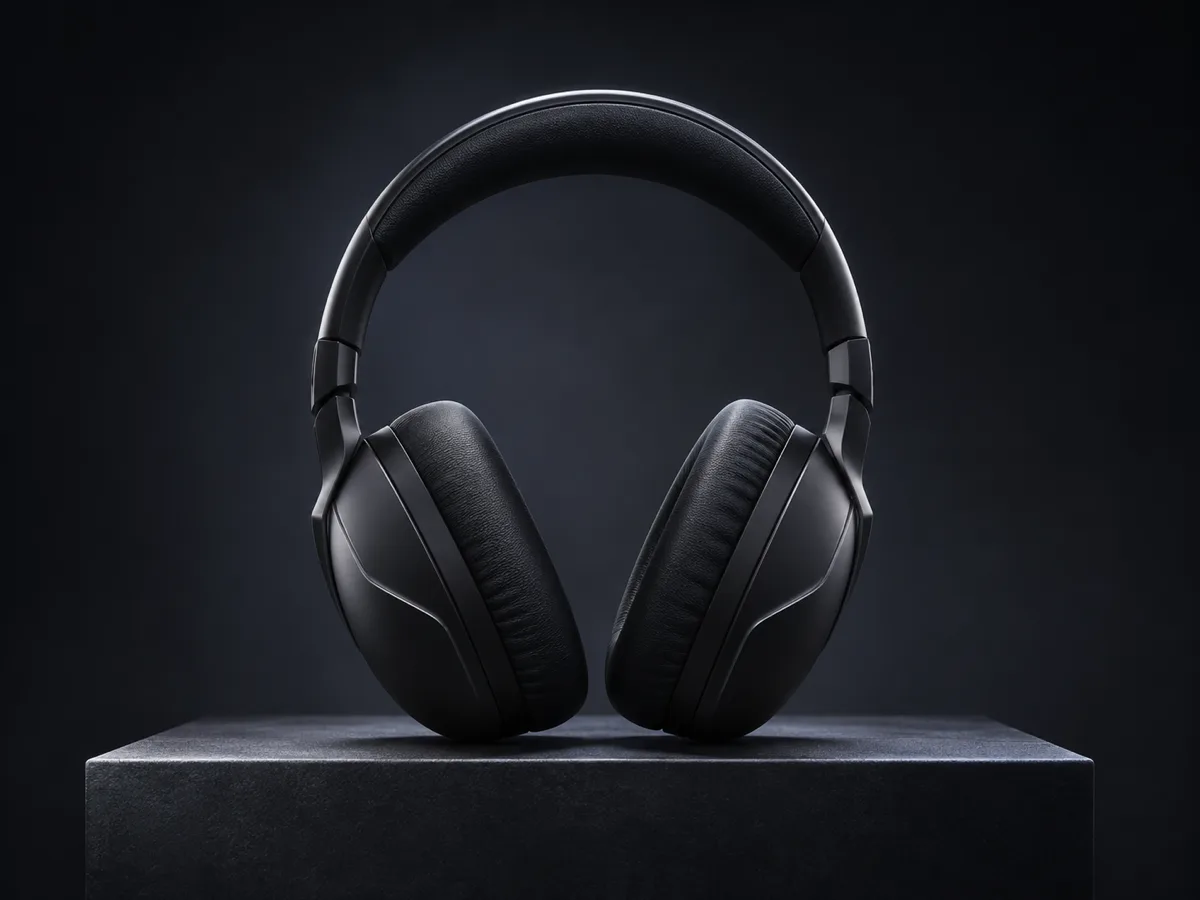
A single pair of matte black headphones rests on a dark plinth and slowly becomes visible. One subject, one action, a still camera, soft rim light. No extra objects and no readable text.

Headphones appear on a plinth

Illustrative still: matte black headphones resting on a dark plinth under a soft rim light

Illustrative still: matte black headphones on a dark plinth.

Seedance 1.5 Pro · 4 seconds · 9:16 · 720p

A ceramic coffee cup sits on a wooden morning table while a thin ribbon of steam rises. Warm light stays on the cup. One subject, one action, a still camera. No readable text.

Morning coffee steam

Illustrative still: a ceramic coffee cup on a wooden table with a thin ribbon of steam

Illustrative still: a coffee cup and steam in warm morning light.

Seedance 1.5 Pro · 12 seconds · 16:9 · 720p

One sheet of thick cream paper unfolds across a small exhibition plinth. The same sheet stays in frame while it opens. A still camera, even gallery light. No readable text.

Paper unfolds on a plinth

Illustrative still: a sheet of cream paper arranged across a small exhibition plinth

Illustrative still: cream paper arranged on an exhibition plinth.

What can you create from a text prompt?

A text prompt can make a short scene, a concept shot, or a piece of marketing B-roll. The sentence names the subject, the action, and the look of the frame.

This text to video AI starts from the words you write. It does not ask for a product photo, and it does not turn the sentence into a sales brief.

A written shot vs a photo-led clip

Seedance 3 text promptPhoto-led clipAd briefStill slideshow
Starts fromThe sentence you writeA pictureA product briefA stack of stills
Picture sentNoneThe uploaded photoOptional photosThe stills
MotionThe subject moves in a steady frameDepends on the photoA sales beatNone
SoundNot turned onDepends on the toolOften a voiceoverNone

This page opens on Seedance 1.5 Pro because a prompt alone can make the clip, and 4, 8, and 12 seconds are available at 16:9. No picture is attached. Veo 3.1 Fast is the tool for a clip that must start from a frame.

How to write a video prompt that is easy to render

  1. 1. Name one subject

    Write the one thing the shot is about. A pair of headphones, a coffee cup, or a sheet of paper is enough.

  2. 2. Add one action and one scene

    Say what that subject does and where it sits. Keep the camera still so the action stays readable.

  3. 3. Set the length and the frame

    Choose 4, 8, or 12 seconds, 16:9 or 9:16, and 480p, 720p, or 1080p. The credit estimate updates with those choices.

  4. 4. Generate and download

    Generate is the step that creates the clip. Download the MP4 for the length and frame you chose.

Text to video questions

What is text to video AI?

Text to video AI turns a written prompt into a short clip. On this page the sentence names one subject, one action, and one scene, and no photo is sent.

What can you create from a text prompt?

You can create a short scene, a concept shot, or marketing B-roll. The words control the subject, the action, and the look of the frame.

How do I write a video prompt that is easy to render?

Name one subject, one action, and one scene, then add the light and the frame. A still camera and a single action are easier to render than a list of cuts.

Does this page need a photo?

No. The prompt is the input. A photo-led clip starts from an uploaded picture, and that is a different page.

Does the clip include sound?

This page does not turn sound on. The clip comes from the written prompt, and the download is the picture sequence for the length you chose.

Does a shorter length change the credit estimate?

Yes. The button shows the estimate for the model, length, and resolution currently selected. Changing 12 seconds to 4 seconds updates that number before you generate.