
A cup of coffee, with steam that was not in the still
Veo 3.1 Fast · 8 seconds · 16:9 · Subtle motion
A thin ribbon of steam rises from the cup. Keep the cup, handle, table and framing still.
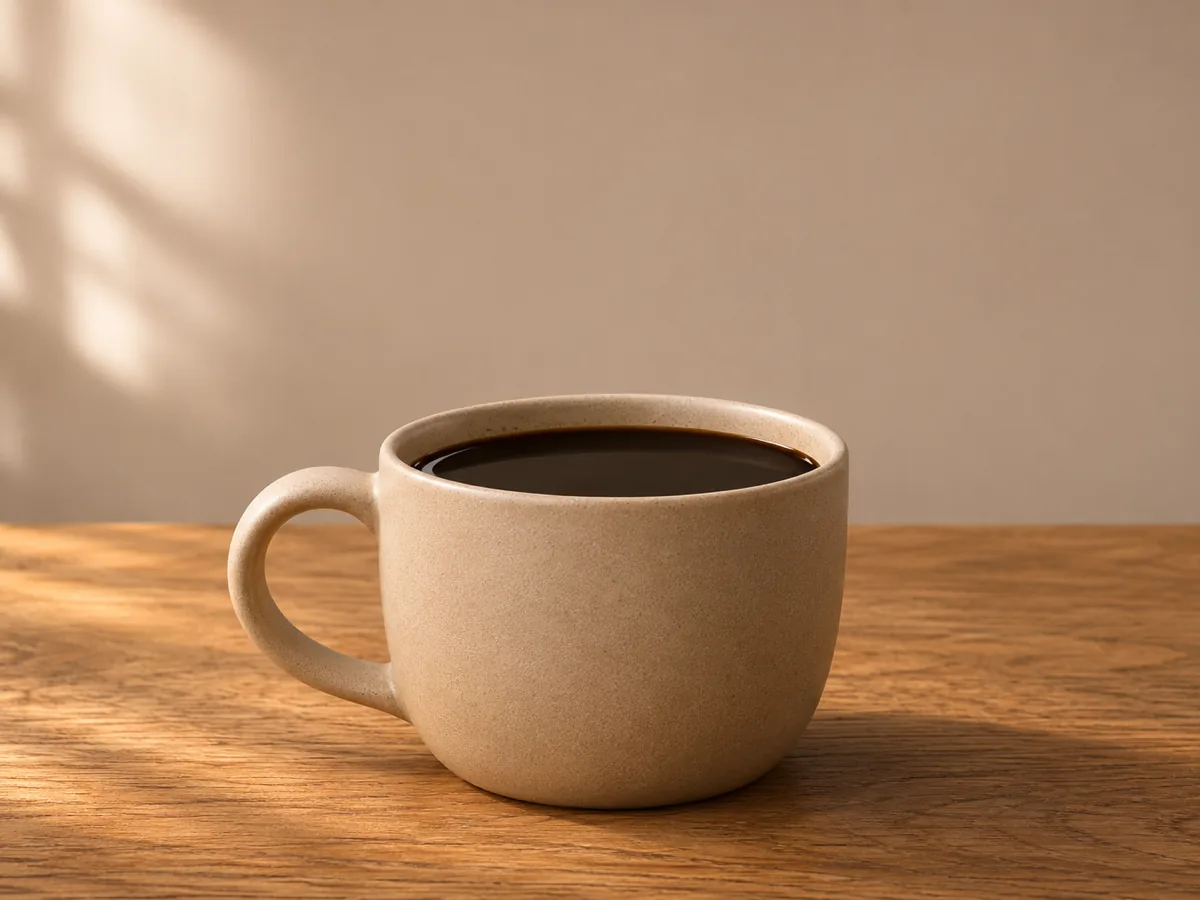
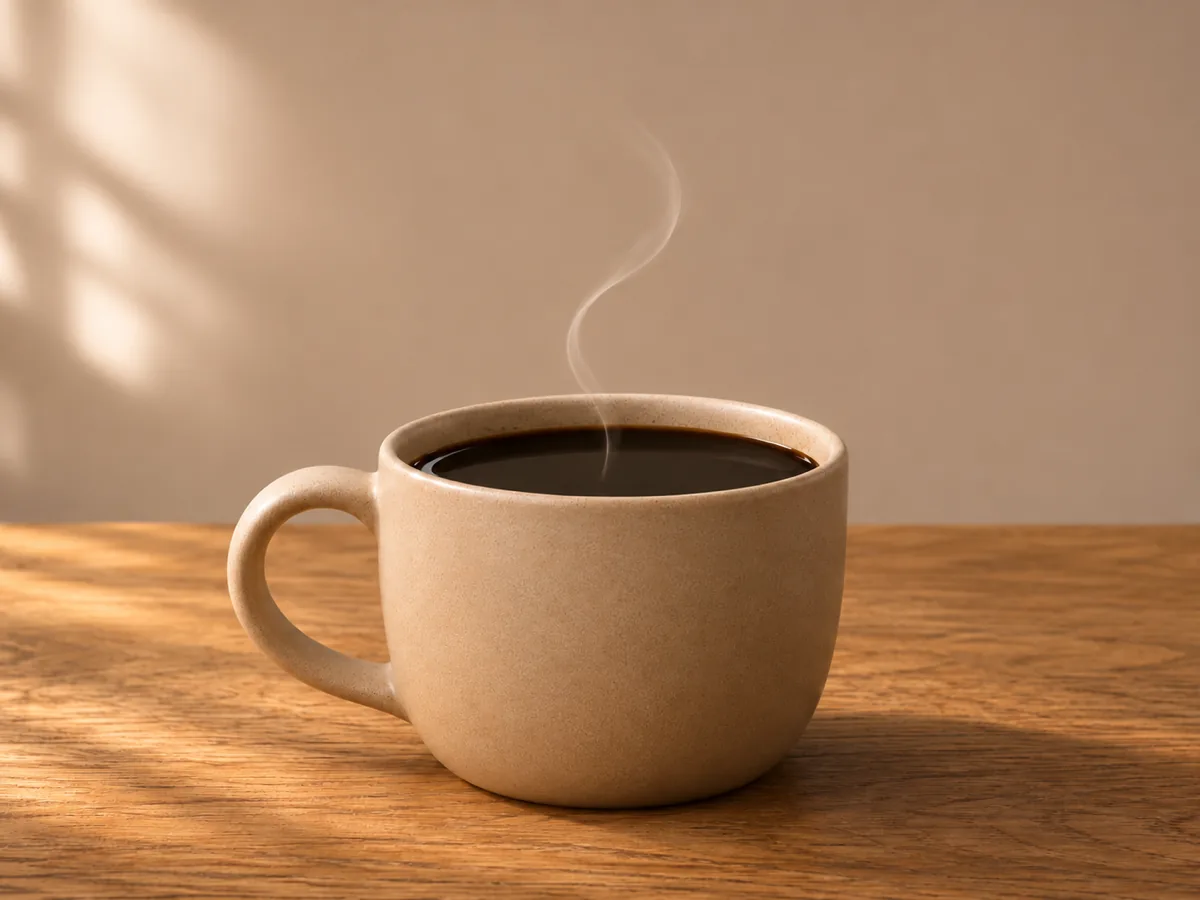
Image to video starts from a picture you already have. Upload one frame, describe the motion, and download an 8-second clip that opens on that picture.
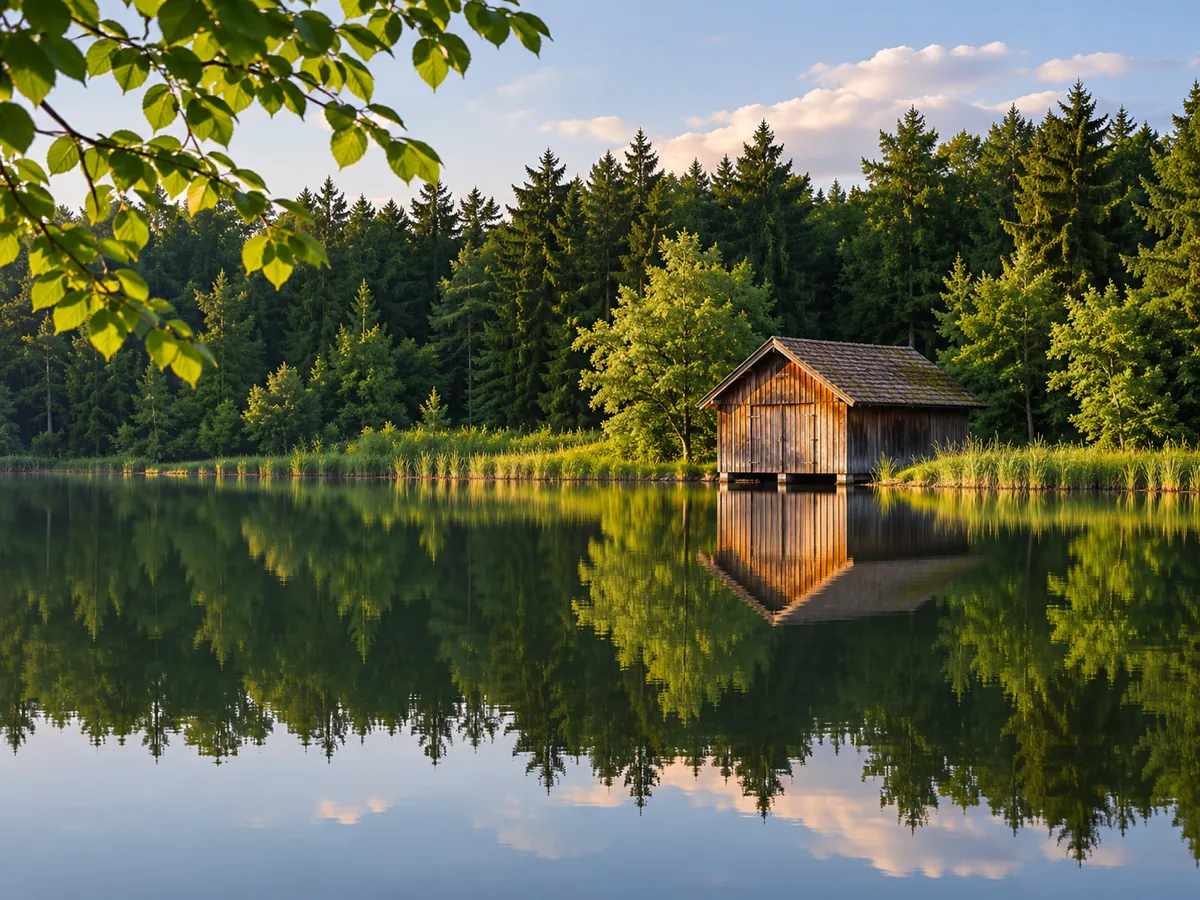
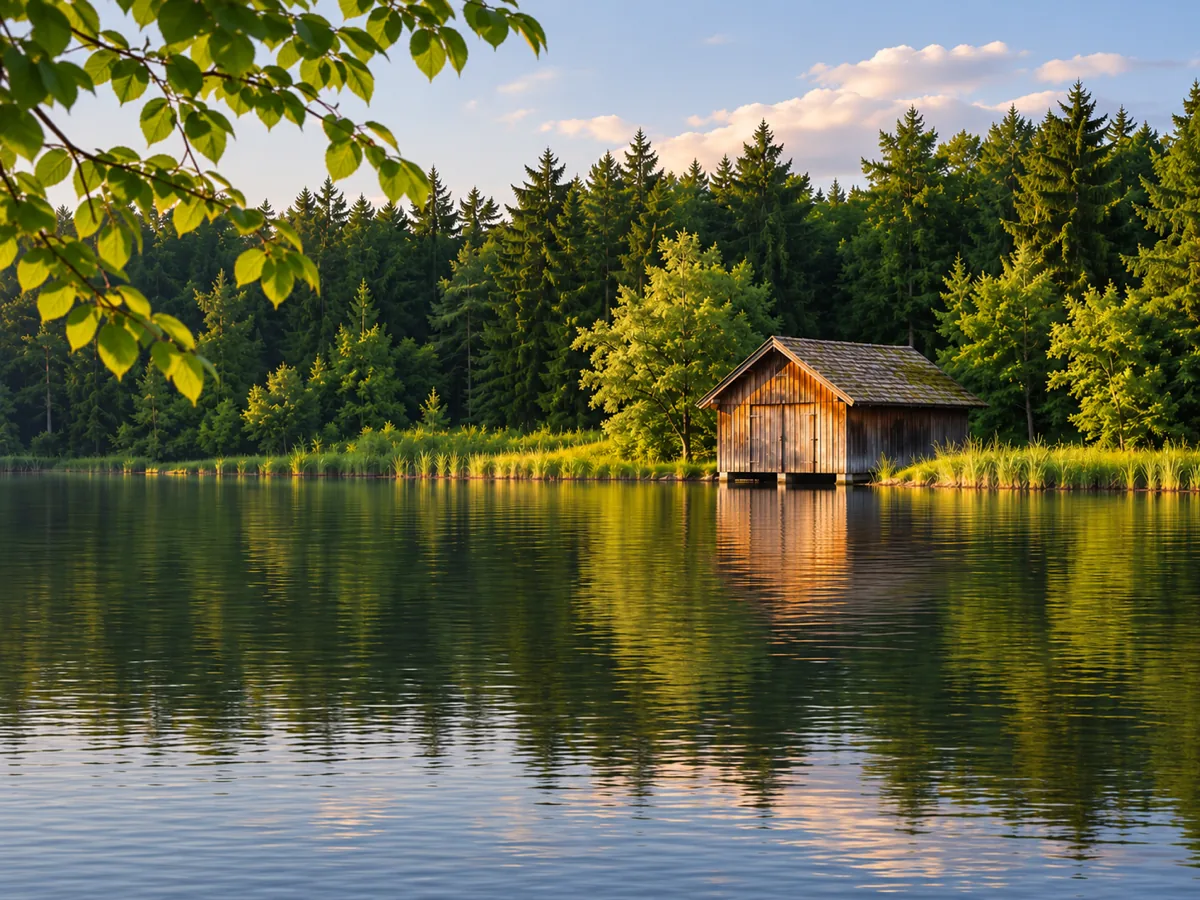
Each group is one picture and the shot made from it. The cup keeps its shape while steam appears. The lake keeps its horizon while the water moves. The robot keeps its colors while one hand goes up.
Veo 3.1 Fast · 8 seconds · 16:9 · Subtle motion
A thin ribbon of steam rises from the cup. Keep the cup, handle, table and framing still.
Veo 3.1 Fast · 8 seconds · 16:9 · Subtle motion
Small ripples cross the lake and the near leaves shift slightly. Keep the horizon and the building where they are.
Veo 3.1 Fast · 8 seconds · 9:16 · Subject movement
The robot raises one hand in a wave. Keep its colors and outline.


Image-to-video AI animates a picture you already composed. You describe the new motion, and the result is a short video that opens on that frame. It is not a slideshow, and it is not a blend of several reference pictures.
A product photo can pick up steam, a glint, or a slow shift of light while the pack, the logo and the table stay put. A landscape can move at the water, the leaves or the clouds while the horizon and the building stay where you put them. An illustration can wave, blink or lean without a new drawing.
The picture is the start of the shot, not a suggestion. If the motion asks for a body that was cropped out, a label that was never visible, or a camera angle the photo does not contain, the model has to draw those parts. That is when the original details change. A smaller motion stays closer to the still.
Seedance 3 image to video is the one to use when the picture has to survive. A prompt-only tool invents a new scene. A slideshow only cuts between stills. A multi-image reference tool can redesign the subject. Here the upload is required, one picture is the first frame, and you download an 8-second shot.
| Seedance 3 image to video | Prompt-only video | Photo slideshow | Several reference images | |
|---|---|---|---|---|
| What you start with | One picture is required. The clip opens on that frame. | Words only. The scene is invented. | Your photos, shown one after another. | Several pictures mixed into a new composition. |
| What moves | The motion you write, on the picture you uploaded. | Whatever the prompt describes, from scratch. | The cut or the pan. The photos themselves stay still. | A new shot that may move the product, face or logo. |
| What you keep | The cup, face, logo, colors and horizon you framed. | Only what the model happens to match. | Every still, because nothing is redrawn. | Less of the original, because the pictures are references. |
| What you take away | An 8-second 16:9 or 9:16 clip you can download. | A clip of a different scene. | A sequence of stills. | A clip that may not match any one source. |
This page opens on Veo 3.1 Fast because a single still needs a model that treats the upload as the opening frame of an 8-second shot. Choose Kling 3.0 in the same menu when a person needs a longer movement. Choose Seedance 1.5 Pro or Seedance 2.0 when you want a 4- to 15-second cinematic move and a resolution you set yourself. You stay on this page either way.
Upload one clear picture, describe the motion, choose 16:9 or 9:16, then generate and download. On Veo 3.1 Fast the clip is 8 seconds and there is no resolution control, because that model does not take one.
Step 1
Use one JPEG, PNG or WebP, up to 20MB, that opens on your device. A second file is refused, so the page cannot silently keep one picture and drop the other.
Step 2
Subtle motion is selected first. Subject movement and Camera move replace that line in the prompt, and you can edit the words afterward. The line is part of the prompt, not a separate strength setting.
Step 3
16:9 suits a product or a landscape. 9:16 suits a story or a character. The Generate button shows the credit cost for the model and length you have selected.
Step 4
Generate when the picture and the motion are ready. Preview the clip, download it, and open the same file again from My Creations. Changing the picture or the motion keeps the last clip available until you generate a new one.
A large action changes the original picture because the model has to invent anything the still does not show. Steam, a ripple or a small wave stays close to the photo. A run, a turn or a new angle redraws the subject, so labels, edges and faces can drift. Write the smaller motion when those details have to remain.
Image to video turns one still picture into a short moving shot. On Seedance 3 that picture is the first frame, and the clip follows the motion you describe. You download a video, not a slideshow and not a blend of several pictures.
It can add steam to a product, ripples to water, or a wave to an illustration, starting from the picture you upload. The subject, colors and framing are the opening of the shot. A motion that needs new body parts or a new angle is more likely to redraw details.
Upload one JPEG, PNG or WebP image up to 20MB, describe the motion, choose 16:9 or 9:16, and generate. The default model makes an 8-second clip. Preview it, download it, and find the same file in My Creations.
A prompt with no picture asks the model to invent the scene. Image to video requires your picture, so the subject starts where you placed it. Use words alone only when you do not have a frame that has to stay intact.
One picture is the opening frame and stays the subject of the shot. Several reference images are ingredients for a new composition, and the subject can be redesigned. This page takes one picture.
The model can keep what the still already shows. Steam or a ripple stays close to the photo. A run, a spin or a new camera angle has to be drawn, so edges, labels and faces can change. Use a smaller motion when the original details matter.
One JPEG, PNG or WebP file, 20MB or smaller, that can be opened. An empty selection, a second picture, a damaged file or a file over 20MB is stopped before a generation starts.
Veo 3.1 Fast, the model this page opens on, makes an 8-second clip in 16:9 or 9:16. It has no separate resolution control. Kling 3.0 and Seedance are in the same model menu when you want a longer shot.