
Five searches arrive at the same upload tile, and only one of them describes the same product. Happy Horse 2 is the name of a studio. Happy Horse 2 AI Video Generator is the phrase people type when they want the output. Happy Horse AI Video is the shorthand that drops the number. AI Image to Video Generator and AI Text to Video Generator are the two category names underneath, and they are not interchangeable — one starts from pixels you already own, the other starts from nothing but words.
Those two are the whole article. Everything else — model choice, duration, credits, aspect ratio — is a purchase decision that sits downstream of the input you choose and the sentence you write. Get the input wrong and no engine saves you. Get the sentence wrong and you pay for a clip that wanders.
This is the how-to, written against Happy Horse 2, the browser studio at happyhorse2.video that puts four video engines and a set of image engines behind one prompt bar. We read the homepage, the about page, the pricing page, the showcases page and the FAQ on November 7, 2026, and we checked the engine specifications against each provider's own documentation rather than taking the marketing copy's word for it. We did not buy a render. So anything below about how a clip behaves is either a property of the engine family or the site's own description — not a clip we paid for and watched. Prices and engine rosters move. If this article and the number on the Generate button disagree, the button is attached to your account and this article is not. Our editorial policy explains how we treat claims we have not reproduced.
Quick answer: For image to video, upload one sharp, well-lit photo with a single subject, then write a sentence with three parts — what moves, how the camera moves, and the mood. Draft on Seedance 1.5 Pro at 480p (from 40 credits), check the whole clip for identity drift, then re-render the take you like on Veo 3.1 Fast (80 credits) or Veo 3.1 Quality (700 credits). For text to video, leave the upload empty and accept that you are now responsible for inventing the frame as well as the motion. Either way: one camera move per clip, one subject action, and the right aspect ratio chosen before you press Generate rather than cropped afterwards.
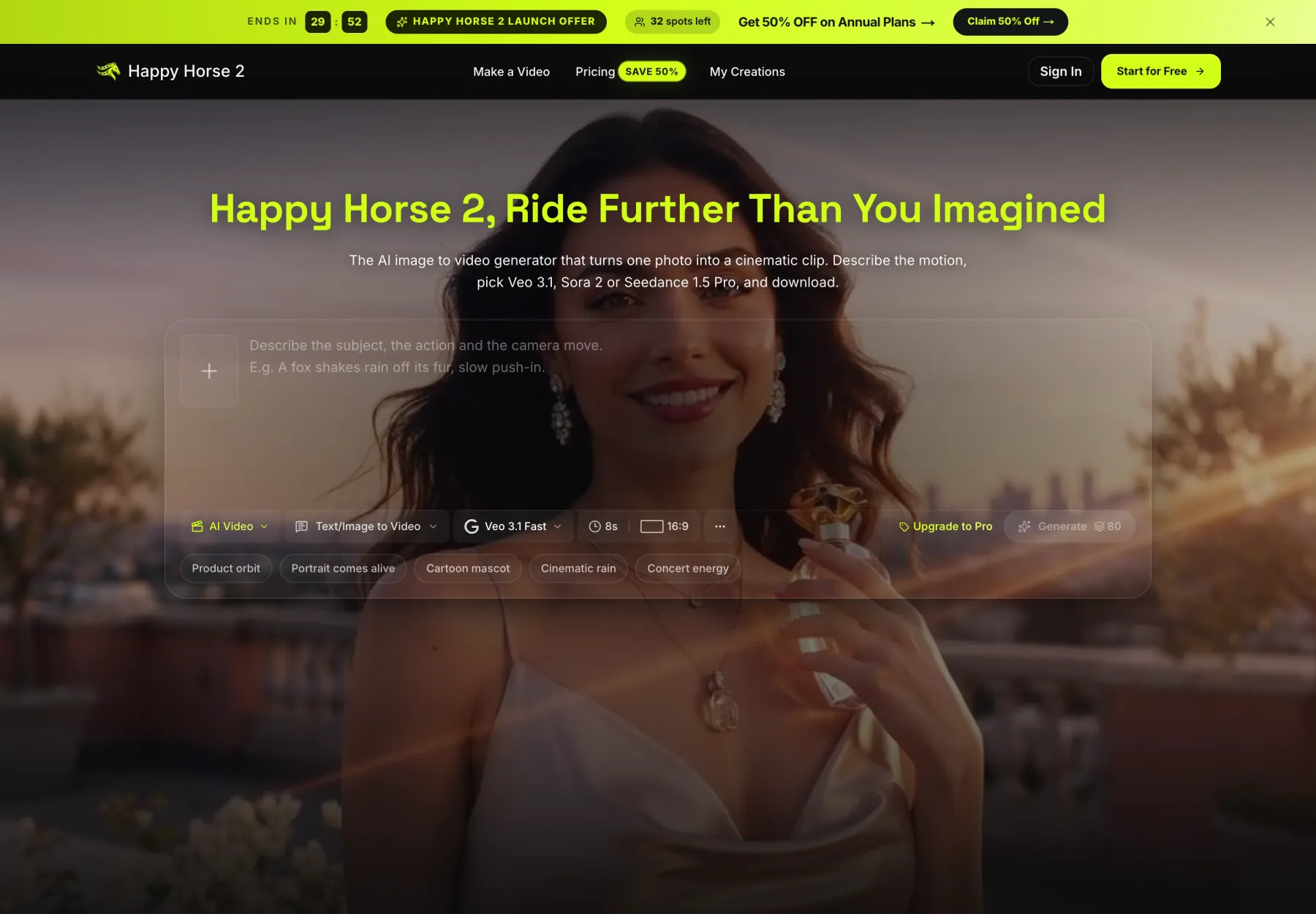
Screenshot of happyhorse2.video, taken November 7, 2026. The prompt bar opens in video mode with an upload tile on the left. Every control that changes cost is visible before you spend: engine, duration, ratio, and the credit figure on the button.
First, What Happy Horse 2 Is Not
The name is a collision, and the collision costs people money, so start here.
"HappyHorse" is also the name of a video model family published by Alibaba. HappyHorse 1.0 appeared anonymously on the Artificial Analysis leaderboard in early April 2026 and topped the text-to-video and image-to-video rankings before Alibaba confirmed on April 10 that the model came from its Token Hub innovation unit. Alibaba Cloud put it into limited beta on April 28, 2026, with text-to-video, image-to-video and subject-to-video, up to 15 seconds of 1080p and synchronised audio. HappyHorse 1.1 followed on June 23, 2026, improving motion, reference-image consistency and prompt adherence. That is a real model with real weights, and it is not what you get here.
Happy Horse 2 says so itself, in three places: the homepage section headed "What Happy Horse 2 Is, and What It Is Not", the About page, and the FAQ. It is an independent studio, it has not trained a video model of its own, and it is not affiliated with, sponsored by or endorsed by Alibaba. What it does is route your job to somebody else's engine.
That single structural fact explains almost every other thing about the product, including its weaknesses. It is not a model with a house style. It is a switchboard. If you came looking for Alibaba's HappyHorse, you are in the wrong building, and the honest thing is to say so before you buy credits. If you came looking for a place to put one photo through four different renderers and keep the best result, the switchboard is the entire point.
The Five Keywords, Untangled
| The phrase | What is actually behind it | What you should expect |
|---|---|---|
| Happy Horse 2 | The studio. A browser workspace with one login, one credit balance and one library. | A switchboard, not a model. Its quality ceiling is whichever engine you pick. |
| Happy Horse 2 AI Video Generator | The same studio, described by its output. | An MP4 you download. Drafts on a cheap engine, finals on an expensive one. |
| Happy Horse AI Video | The shorthand. Some people mean the studio; some mean Alibaba's model; some mean the whole category. | Check the address bar. The domain decides which product you are reading about. |
| AI Image to Video Generator | The category's technical name. You supply a still; the model predicts the seconds that follow. | Identity is anchored by your pixels. This is the mode that protects an approved packshot. |
| AI Text to Video Generator | The other half of the category. You supply words; the model invents subject, room, light and face. | Total freedom, zero anchors. Great for concepts, unreliable for a specific product or person. |
The last two are the ones worth slowing down for, because the difference is not cosmetic.
An image to video generator inherits a huge amount of information for free: the exposure, the lens, the colour grade, the exact shape of the bottle, the real face of the person who signed the release. Its job is narrow — invent plausible motion without contradicting any of that. A text to video generator has no such inheritance. It has to decide what the subject looks like, which is why the same prompt run twice gives you two different people, two different rooms and two different films.
That is not a defect. It is the trade. Text to video is the fastest way to see whether an idea reads; image to video is the only way to keep an asset you have already approved. Most weak projects fail because someone used the first mode for a job that needed the second.
What the Studio Actually Offers
Four video engines, one balance:
- Veo 3.1 Fast and Veo 3.1 Quality from Google, both rendering 8-second clips with natively generated audio.
- Sora 2 from OpenAI, at 10 or 15 seconds with native audio.
- Seedance 1.5 Pro from ByteDance, at 4, 8 or 12 seconds and 480p, 720p or 1080p — the only engine in the lineup with a resolution ladder, and the cheapest place to find out whether a shot works.
Every one of the four accepts an image or a text prompt, which is what makes the "run one photo through several engines and compare" habit possible at all. Both 16:9 and 9:16 are offered across the board, so vertical is a setting rather than a separate product.
Stills are handled by a separate roster that currently includes GPT Image 2, the Nano Banana family, Seedream, Grok Imagine, Wan and Qwen Image. That matters more than it looks. If you only have a rushed phone photo, the image side is where you build a proper first frame before you spend anything on motion — and building the frame first is usually cheaper than fixing it with a video re-render.
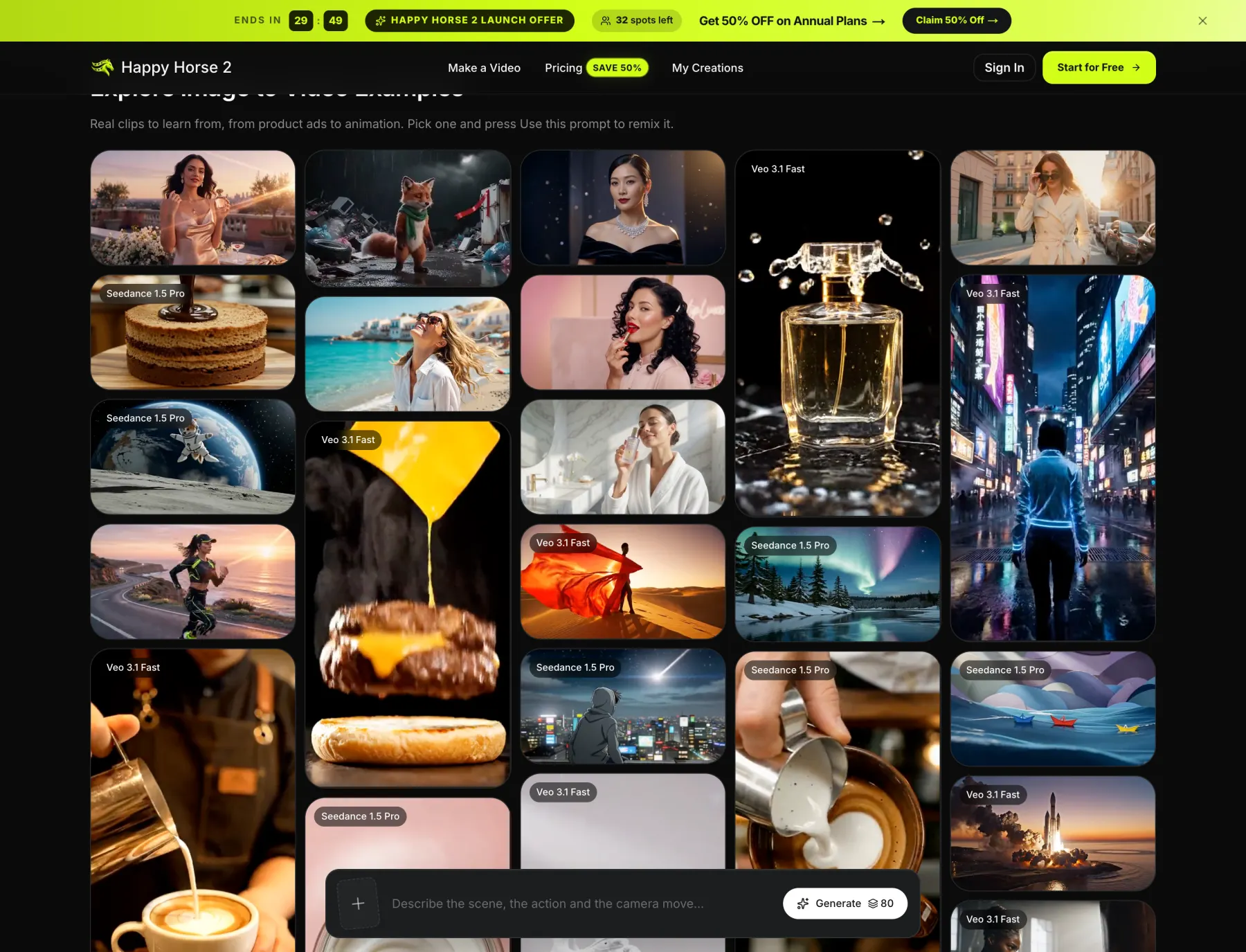
The examples gallery, also captured November 7, 2026. Every tile is a remixable prompt, and each one names its engine — which is the most useful thing on the page. It tells you which of the four renderers is being used for the look you are drawn to, before you have spent a single credit.
Four input modes come out of that:
- Image to video. One photo in, one clip out.
- Text to video. No upload at all; the prompt is the whole brief.
- Frames to video. An opening still and a closing still, with the movement generated between them.
- Reference to video. Supporting pictures that guide a clip without being frame one.
Mode four is the one people misuse. A reference is not a first frame. If you need the shot to start on your approved image, use mode one or mode three, not mode four.
How to Choose a Photo That Can Actually Move
This is where most failures are decided, and it happens before you spend a credit. Run every candidate through the same list.
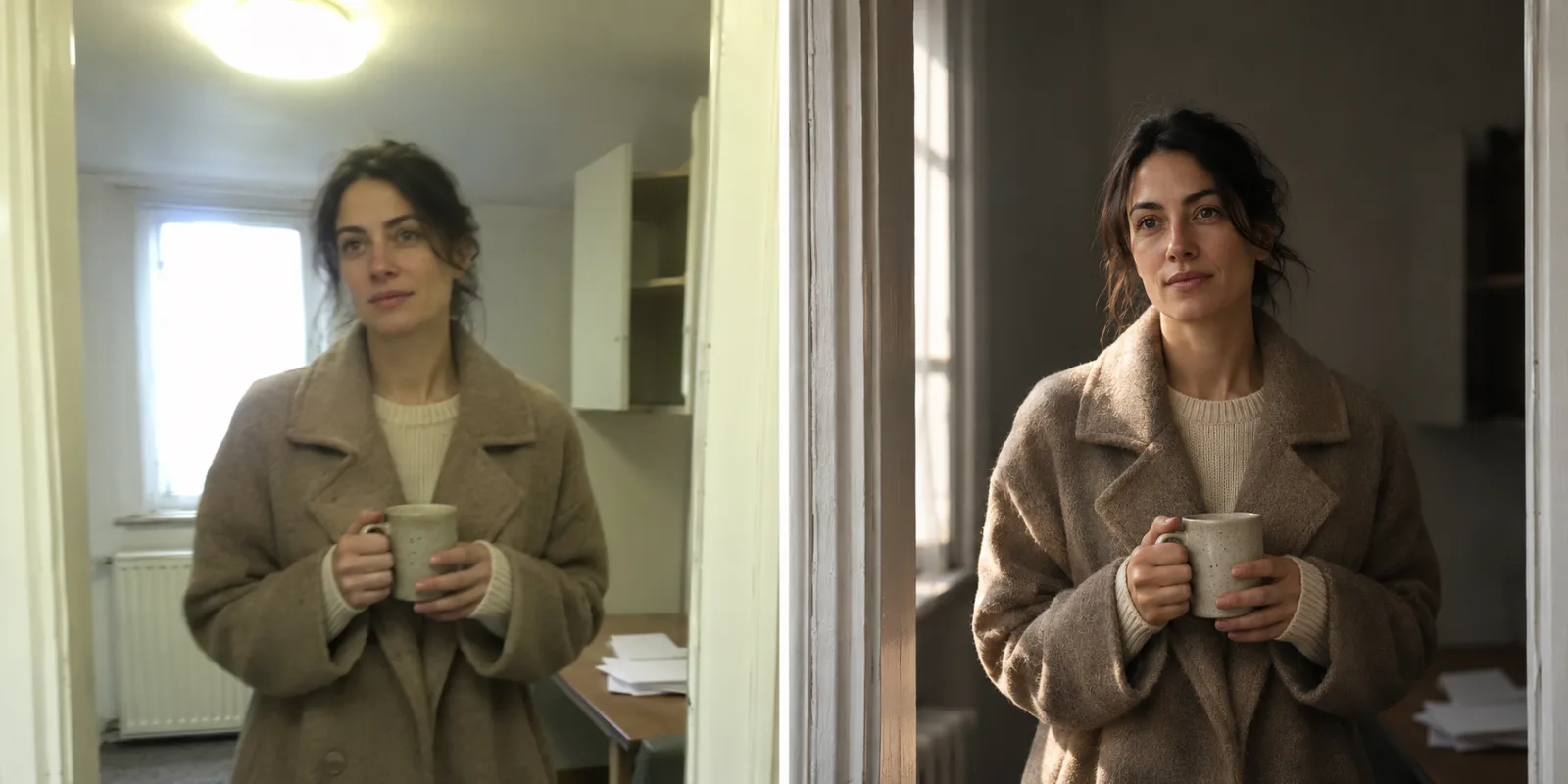
Illustration made for this article with an AI image model, not a render from the studio: one subject, one room, two treatments. The left panel is the frame that will produce a smeary clip, because the model has to invent the detail it cannot resolve — and it invents different detail in every frame. The right panel is the frame that animates cleanly.
Sharpness at the size you will publish. A 1080p landscape frame is 1920 by 1080. If the photo is smaller than the delivery, you are asking the engine to upscale and invent simultaneously, and the invention changes frame to frame. That is what "melting" actually looks like at a technical level.
One unambiguous subject. Group photos are the most common cause of a bad render, because the model must decide who is moving and, given several candidates, may blend features across them. Crop to one person or one product per file.
A face you can read. Front-facing or a slight three-quarter turn, both eyes visible, nothing crossing the cheek. No sunglasses, no hair curtain, no phone held up. Eyes animate best when they are legible at thumbnail size, which is the size most of these clips are actually watched at.
Hands either fully inside the frame or fully outside it. A hand cropped at the edge is a redraw waiting to happen. If the shot does not need hands, frame them out.
A background that will hold still. Dense patterns, crowds, shelf labels and small text drift frame to frame. Once the background drifts, the eye reads the whole clip as unstable even if the subject is perfect.
The right aspect ratio before upload. Compose in the shape you will publish. Both ratios exist on every engine here, so there is no reason to fix it in an editor afterwards at the cost of your framing.
Permission for every face in it. A paid plan carries a commercial licence for the clip you publish. It cannot carry a licence for the person in the photo, and that is yours to hold.
One line from the site's own showcases page is worth repeating because it contradicts what most people assume: logos, labels and garment prints should be sharp in the source, because blur spreads once frames start moving. A soft label does not stay soft. It becomes a different label.
How to Write a Motion Prompt That Holds
The prompt bar asks for a sentence, and the site's own guidance is three parts in a fixed order. That structure is not arbitrary — it maps onto what the model is actually conditioning on.
Part one: what the subject does. One action, physical and finite. Not "she is happy" but "she laughs and looks away". Not "the bottle spins beautifully" but "the bottle turns a quarter turn on its base".
Part two: how the camera moves. One move. This is where most prompts break, because people stack three. Push-in, pull-back, orbit, pan, tilt, crane, rack focus, handheld. Pick one and let it finish.
Part three: the mood and the light. "Golden-hour warmth". "Cold blue moonlight". "Soft morning haze". This is the part people skip and then wonder why every clip looks like a stock library — the mood line is what makes two shots from the same source feel like they belong to one film.
Put together: "She laughs and looks away, slow dolly left, golden-hour warmth." That is a complete brief. Compare it with the wish that fails: "make it cinematic". The second sentence contains no subject, no action and no camera, so the engine invents all three, and it invents them differently on the retry.
Two habits follow from the structure.
Never re-describe the photo in an image to video prompt. The frame already established the room, the wardrobe and the light. Re-describing them wastes the brief and actively invites the model to change them — you said "a woman in a red dress" when the photo shows a woman in mustard, and now two instructions are fighting. Describe what happens next, not what is already there.
Write the prompt for a single 8-second beat. Veo 3.1 clips are 8 seconds. Sora 2 gives you 10 or 15. Seedance gives you 4, 8 or 12. A prompt that describes a three-shot sequence will be compressed into one confused shot. If the idea needs three shots, that is three renders and an edit, not one clever prompt.
How to Make a Product Clip That Survives the Motion
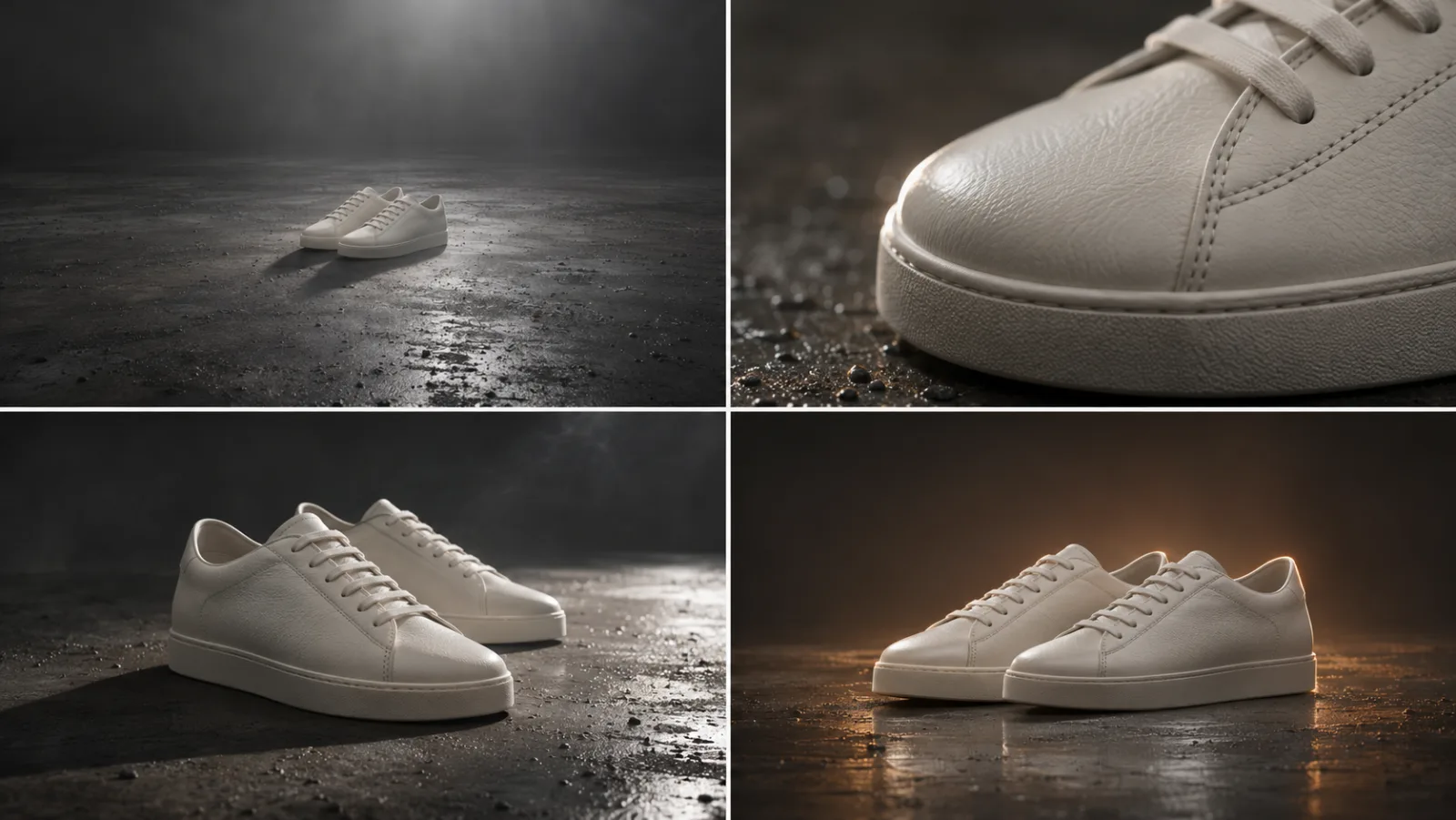
Illustration made for this article with an AI image model: one product, four shots from one film. The sole thickness, the lacing and the leather tone stay identical across all four, because the deliverable is a cut, not four unrelated pictures. Each of these is a separate 8-second render in the studio.
Product work is the highest-value use of this tool and the one most likely to produce something you cannot publish, so it deserves its own method.
Fix the still first. A packshot that already has the lighting you paid for is a much better brief than a mediocre photo plus instructions. If the still is weak, build it in image mode and only then switch to video.
Ask for less motion than feels impressive. A quarter orbit around a bottle, or fabric catching a breeze. Fast spins and aggressive parallax destroy labels, seams and thread counts, and those are the details that make a product shot usable in a listing.
Keep the camera slow and the subject still-ish. The eye reads a slow, confident move as expensive. It reads a fast one as a template.
Check four things at full size, in this order: text on the label, seams and threads, silhouette, then reflections. Text is where these models still slip; reflections are where a relight gives itself away. If any of the four moved, the clip is a concept, not a listing asset.
Be honest about what a generated product clip is for. A hero banner, a secondary listing image, a seasonal variant: fine. A marketplace main image that is required to show the actual product, or anything where the label carries a regulated claim: not fine. An engine that "improves" your packaging has created a legal problem wearing a marketing costume.
How to Make Text to Video Not Look Generic
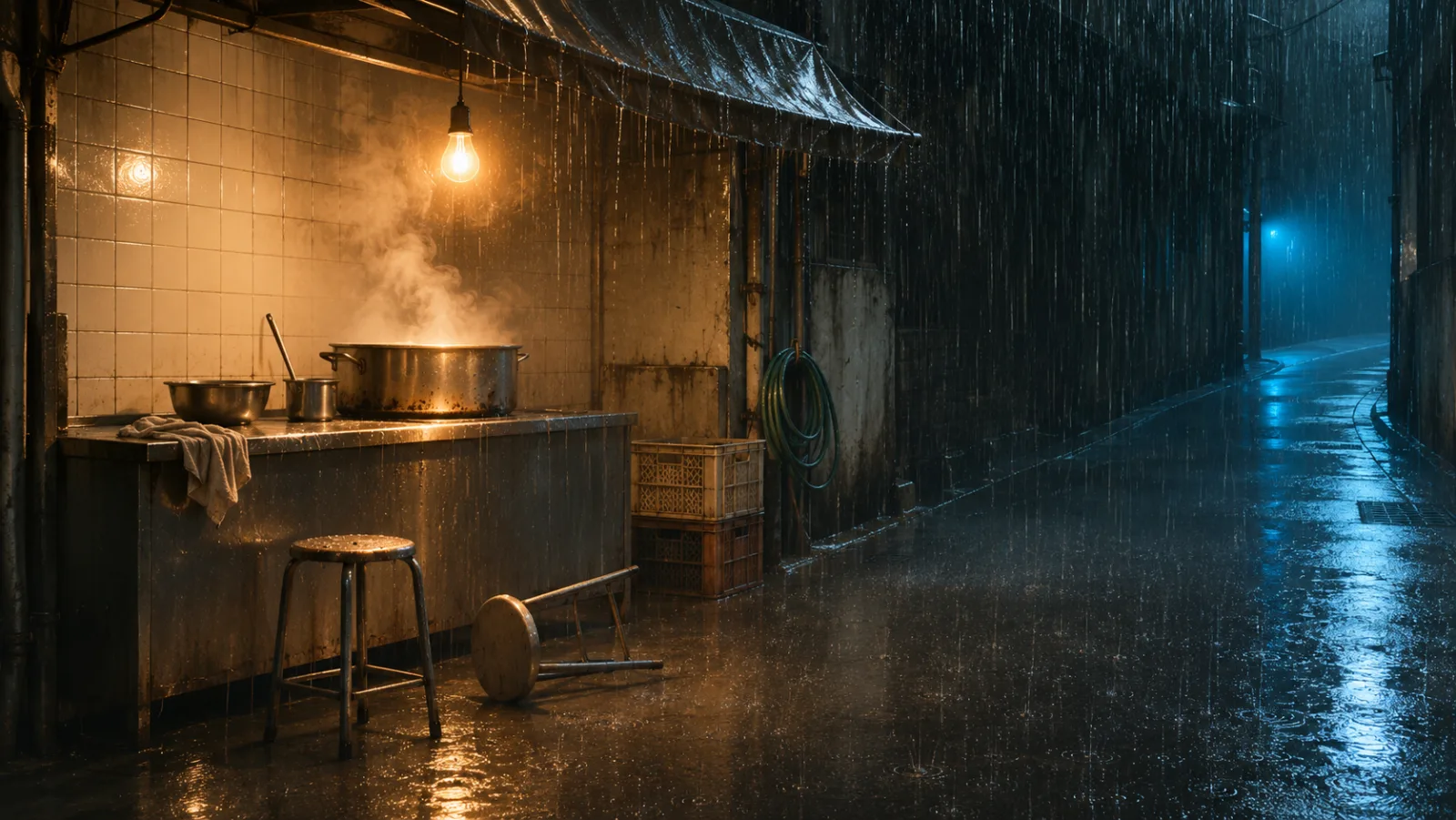
Illustration made for this article with an AI image model, invented entirely from a written brief: a scene nobody photographed. Note what the description had to supply — subject, lens, height, light direction, and what to leave out. Text to video is that list, turned into pixels.
Leaving the upload tile empty turns the job into a text prompt job, and the quality drop is immediate and predictable. Three rules narrow the gap.
Describe the camera like a camera. "35mm, chest height, slightly wider than comfortable, subject occupying the left third." Lens and height do more work than any adjective. A model given no camera information defaults to a generic mid-shot, and generic mid-shots are what make AI video recognisable at a glance.
Name the light and its direction. "One warm tungsten bulb over the counter, cold blue neon from around the corner, deep blacks that still hold detail." Light with a direction creates depth. "Cinematic lighting" creates a filter.
Say what is not in the frame. Empty chairs, no people, no signage. Negative space is a directable element, and the models respond to it. It is also the cheapest way to avoid the crowds of background extras that text to video loves to invent.
Avoid text on purpose. Any word you ask to appear in the frame is a coin flip. If a sign is needed, make it unreadable by design — blurred, out of focus, or turned away.
Draft on the cheapest engine. Seedance 1.5 Pro at 480p starts at 40 credits. Veo 3.1 Fast is 80. Veo 3.1 Quality is 700. You can throw away fifteen Seedance drafts for the price of one Quality render, and you should, because text to video is a lottery until the brief is tight.
How to Use Frames to Video for a Move You Cannot Prompt
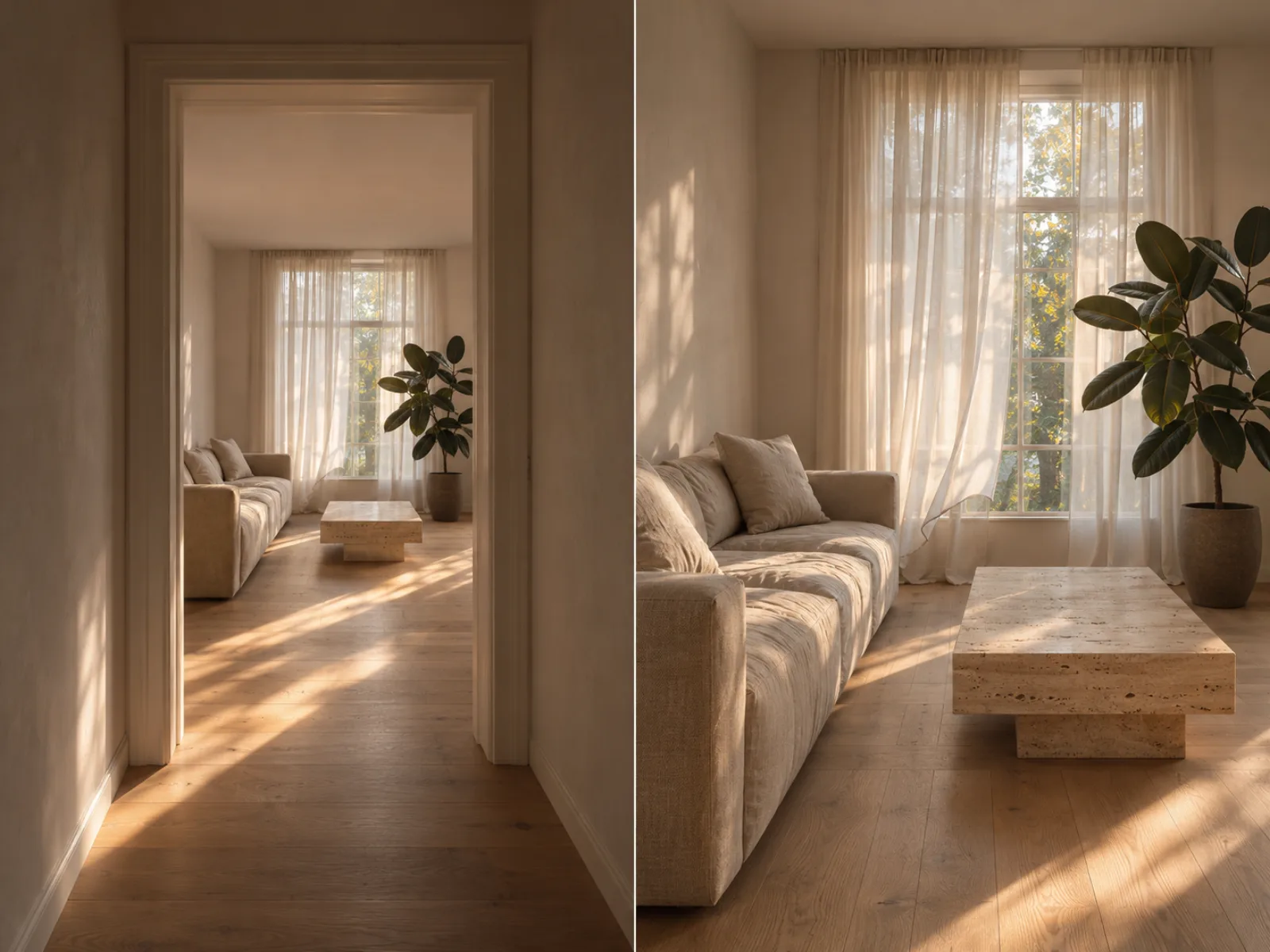
Illustration made for this article with an AI image model: the first and last frames of one continuous move. Same sofa, same table, same sun patch, same lens. Between them, the engine has to invent a camera path that connects the two positions without contradicting either.
Frames to video is the most under-used mode in every studio of this kind, and it solves a problem prompts cannot.
Some moves are easier to state than to describe. A doorway walk-through. A reveal where a product starts hidden and ends centred. A before-and-after where the two ends are fixed and only the transition is creative. In each case, writing two stills and letting the engine interpolate is more reliable than writing a paragraph of camera instructions and hoping.
The method:
- Build both stills from the same source. Same room, same lens, same light direction — ideally rendered in image mode from one prompt with a positional change. Two unrelated pictures give you a morph, not a move.
- Keep the separation realistic. A camera can travel four metres in eight seconds. It cannot cross a building. When the two frames are too far apart, the engine invents a corridor, and the corridor is where the clip falls apart.
- Name the movement in between anyway. "Slow forward dolly, level, no cut." The two frames constrain the endpoints; the prompt still guides the route.
- Check the joins, not the whole. A frames-to-video clip usually passes on the first watch and fails at the seams: the sun patch that jumps, the plant that changes pot, the window that changes size. Watch the midpoint twice.
Property walk-throughs, product reveals and storyboard pre-visualisation all live here. So does the honest version of the "make my photo move" request that image to video cannot answer, because the move needs a destination.
Which Engine Should Render It
| Engine | Credits per clip | Length | Resolution | Native audio | Where it earns its price |
|---|---|---|---|---|---|
| Seedance 1.5 Pro | from 40 | 4, 8 or 12 s | 480p, 720p, 1080p | Yes | Drafts, social variants, anything you expect to throw away |
| Veo 3.1 Fast | 80 | 8 s | 720p, 1080p | Yes | The default final for most work: reliable motion, good light, sane cost |
| Sora 2 | 150 (10 s), 250 (15 s) | 10 or 15 s | Up to 1080p | Yes | Longer beats that need a gesture to finish, or a line of sound |
| Veo 3.1 Quality | 700 | 8 s | Up to 1080p | Yes | One hero shot per campaign, not a working tool |
Two habits follow.
Route by job, not by price list. A concept test goes to Seedance. A client deliverable goes to Veo 3.1 Fast. A single hero frame for a launch goes to Veo 3.1 Quality. The mistake is treating the expensive engine as the default and the cheap one as a compromise; it is the other way around. Cheap is how you find out what the shot wants.
Compare engines on an identical prompt before you commit. This is the one advantage a multi-engine studio has over a single-model site, and almost nobody uses it.
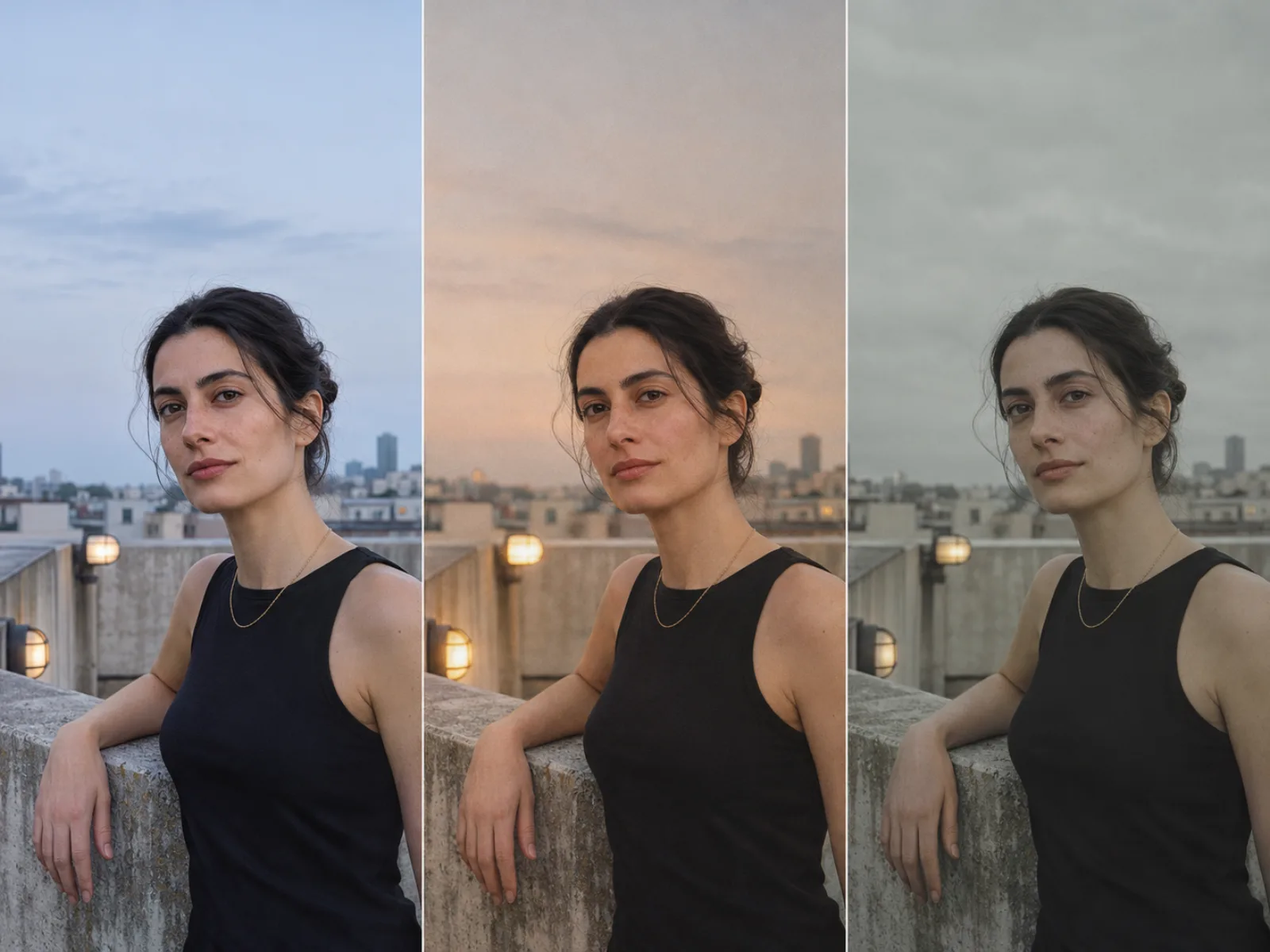
Illustration made for this article with an AI image model: one frame, three photographic treatments. That is roughly the spread you get running one photo and one prompt through different engines — the subject holds, the look moves. Pick the look first, then write the prompt to suit it.
Run the same photo and the same sentence through two engines at the cheapest settings, put the results side by side, and note which one held your product and which one invented a nicer bottle. That comparison is worth more than any benchmark, because it is your product and your light.
What the Credits Actually Buy
The headline plan numbers are quoted in credits, and credits mean nothing until you divide.
Annual plans, checked November 7, 2026:
| Plan | Per month | Credits per year | Cost per 100 credits |
|---|---|---|---|
| Starter | $9.90 | 9,600 | $1.24 |
| Pro | $19.90 | 24,000 | $0.99 |
| Studio | $44.90 | 72,000 | $0.75 |
| Max | $99.90 | 180,000 | $0.67 |
Now translate. A Starter balance of 9,600 credits is 120 Veo 3.1 Fast clips, or 240 short Seedance drafts, or thirteen Veo 3.1 Quality hero shots. Those three numbers describe three completely different working styles, and only one of them will match yours. A creator who drafts on Seedance and finishes on Fast fits comfortably inside Starter. A team that reaches for Quality on every render will burn a Studio plan in a week.
Three mechanics are worth knowing before you pay:
Credits are reserved on submit, not on completion. The cost is held when the job starts rendering.
A failed render costs nothing. If the engine errors out and no video comes back, the reserved credits return to your balance automatically. This is the single most important line in the pricing FAQ, because generative video fails often and unpredictably.
Expiry follows the source. Monthly plan credits run for the billing period, annual plan credits for 365 days, and one-time packs for a year from purchase. If your work is bursty — a catalogue refresh in March, nothing until autumn — a pack suits you better than a subscription, because a subscription you do not use still expires monthly.
One caveat on the annual pricing: the site was running a launch offer of 50 percent off annual plans when we looked. Treat any discount as a variable, not as the price.
Where This Workflow Stops Working
Five honest limits, in order of how often they bite.
It cannot guarantee a face. Reference conditioning guides identity; it does not lock it. A clip of a real spokesperson will pass a casual look and fail a careful one, and no amount of prompt engineering changes that. If identity must be contractual, you need a shoot.
It cannot reliably set type. Small text in frame — a label, a sign, a screen — is where these engines quietly lie. Plan a post-production pass, or shoot the text separately and composite.
The roster is somebody else's decision. This is a workspace built on other companies' APIs, and it says so plainly: engines get swapped when a provider changes terms or retires a version. That is a reasonable trade for a designer who does not want four billing accounts. It is a bad trade if your pipeline needs a pinned model version and a contract behind it.
Two specific cases deserve naming, because both are live in November 2026 and both are easy to get wrong. OpenAI's own Sora API was removed on September 24, 2026, after the consumer app was discontinued in April; third-party listings for Sora 2 vary in whether they actually return video. Google retired the Veo 3.1 preview models on the Gemini API in October 2026, while the generally available Veo 3.1 models continue on its enterprise platform. None of that makes the studio's menu wrong — resellers can serve a retired endpoint from stock arrangements — but it does mean one habit is worth keeping: check that your chosen engine still renders before you buy a large pack, by spending the smallest possible amount on it first.
It is not an editor. No timeline, no masks, no speed ramp, no colour grade. The studio makes shots. Cutting them into a sequence is a different piece of software, and it is not optional if the deliverable is more than one clip.
Motion amplifies whatever is wrong. A soft source becomes a smear, a busy background becomes a crawl, a cropped hand becomes a redraw. There is no prompt that repairs a bad input, which is why the source checklist earlier in this article is longer than the prompt section.
Frequently Asked Questions
Is Happy Horse 2 the same as Alibaba's HappyHorse?
No. The studio says so on its homepage, its About page and its FAQ. It is independent, it has not trained a video model, and Alibaba's HappyHorse model does not run there. Requests go to Veo 3.1, Sora 2 or Seedance 1.5 Pro.
How many credits does one clip cost?
Seedance 1.5 Pro starts at 40 for a short 480p take. Veo 3.1 Fast is 80 for an 8-second clip. Sora 2 is 150 for 10 seconds or 250 for 15. Veo 3.1 Quality is 700. Longer or higher-resolution Seedance settings cost more. The price is shown on the Generate button before the job starts.
Is there a free trial?
New accounts receive starter credits for testing. That is enough to learn how your own photos respond to a motion prompt. It is not enough to finish a campaign, and it is not a substitute for buying a small pack before committing to a large one.
Can I use the videos commercially?
Plans and packs whose card lists a commercial licence cover the clips you publish, and video downloads are watermark-free. Stills downloaded without an active paid plan carry a small mark. You remain responsible for the rights to whatever you upload — the licence covers the render, not the person in the photo.
What is the difference between image to video and text to video here?
The upload tile. With a photo, the model is anchored to your subject, light and composition and predicts only the motion. Without one, it invents the entire frame. Same prompt bar, same engines, completely different reliability.
Which aspect ratio should I pick?
9:16 for Reels, TikTok and Shorts. 16:9 for YouTube, a website hero or a product page. Decide before you upload or before you write the prompt, because framing composed for one ratio loses its subject when cropped to the other.
What happens if a render fails?
The reserved credits are returned to your balance automatically when the engine errors out and no video comes back. A failed render costs nothing but the wait.
Can I animate a photo of a product I sell?
Yes, and it is the strongest use of the tool — with one rule. Keep the motion slow enough that the label stays readable, then compare the result against the original at full size before it goes near a listing. A generated clip is a marketing asset, not evidence of what the product looks like.
The Bottom Line
The five keywords describe one studio and two jobs. Happy Horse 2 is the switchboard; the image to video generator inside it protects what you already shot; the text to video generator inside it is for the frames nobody has photographed yet. The address bar is how you tell this studio apart from Alibaba's model, and the engine selector is how you tell one look from another.
The workflow that produces shippable clips is the same regardless of engine, and it is unglamorous. Choose a photo that can move. Write one action, one camera move and one mood. Draft cheap. Watch the whole clip, not the first second. Re-render the keeper on the engine that suits the deliverable. Check labels, seams, silhouettes and reflections at full size before anything leaves your machine.
Start with the image to video examples at happyhorse2.video to see which shots match your work — they are remixable, which is the fastest way to learn what a prompt in this studio should sound like. Then read the pricing page and size a balance to a real week rather than a best case. And read the About page before you assume anything about the name; a product that publishes its own limits is easier to plan around than one that pretends not to have any.
As a team that spends most of its time on AI video generation, we keep relearning the same lesson: the model is not the workflow. The workflow is what decides whether the output is usable, and the workflow is entirely in your hands before you press Generate.